How to Increase C Drive Space from D Drive (or Any Drive) in Windows 11
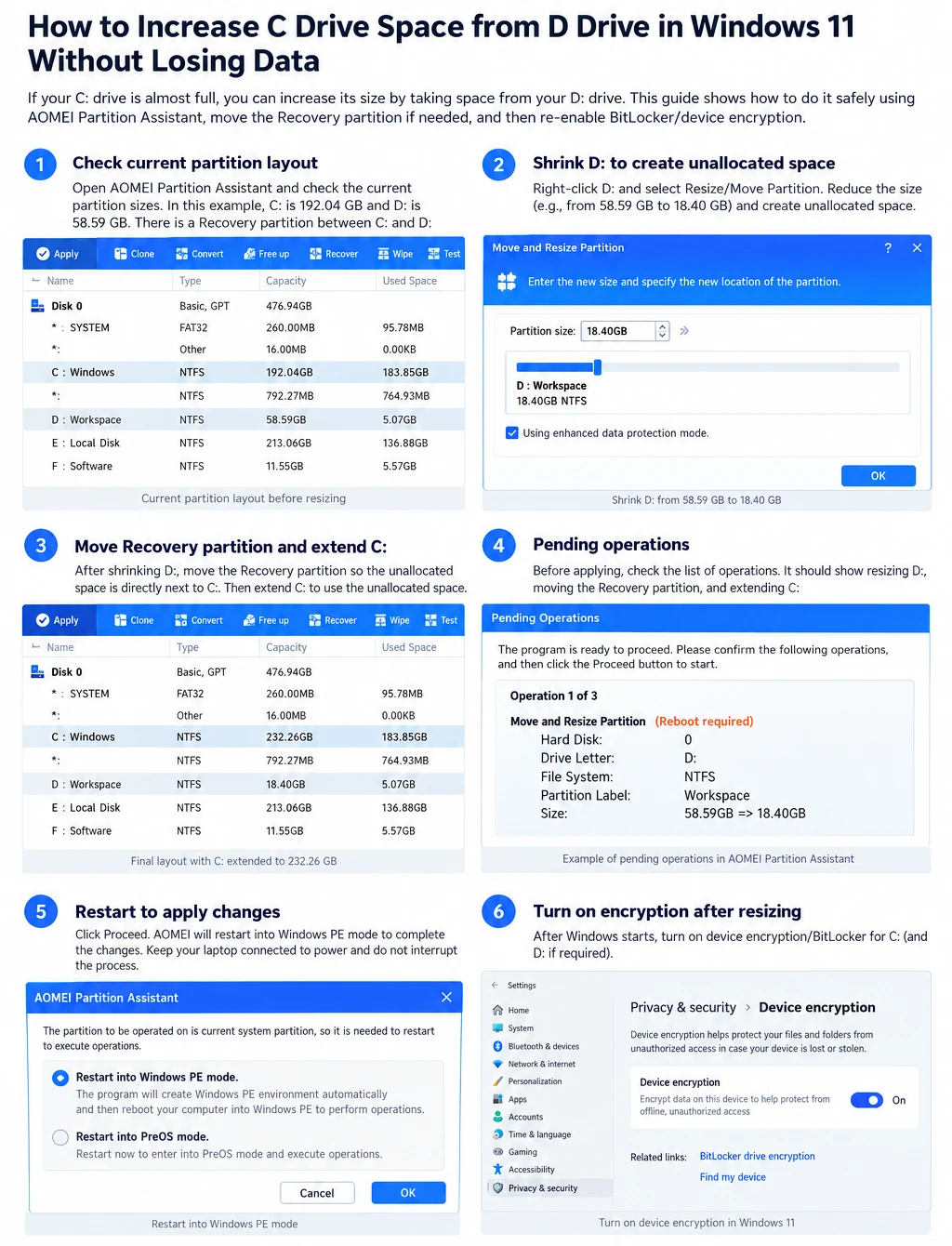
Your C drive is almost full, Windows Update keeps failing, and your D drive has tens of gigabytes sitting empty. It feels like moving that space across should take two clicks. It does not, because a small Recovery partition sits between the two drives. This guide shows the safe order: shrink D, move Recovery, extend C, then check encryption. It works for any drive, not only C and D, and the last part covers what to do when the whole disk is full.
The short version
- Windows can only extend C into free space that sits directly to its right. Between C and D there is normally a small Recovery partition, so Extend Volume stays greyed out.
- The fix is to shrink D, move the Recovery partition to the right so the free space touches C, and then extend C. Disk Management cannot move partitions, so a partition manager is needed.
- Back up first, keep your BitLocker recovery key safe, keep the charger plugged in, and never switch the laptop off while it is working.
Before you start
Ten minutes of checking here saves a very bad day later.
- Back up what matters: Copy your important files from C and D to another disk or to cloud storage. Resizing is safe when it finishes, but a power cut or a wrong click halfway can destroy data.
- Save your BitLocker recovery key: Keep it somewhere that is not only on this laptop, for example in your Microsoft account. Never post it publicly.
- Check C and D are on the same disk: Open Disk Management (press Win + X, then choose Disk Management). If C is on Disk 0 and D is on Disk 1, space cannot be moved between them.
- Check the encryption status: Open Command Prompt as Administrator and run manage-bde -status C: and then manage-bde -status D:. Look at Conversion Status, Percentage Encrypted and Protection Status. If a drive is still decrypting, wait until it is fully decrypted before changing anything.
- Plug in the charger: Moving a partition can take a long time. A laptop that runs out of battery in the middle of it is the most common way to lose data.
Why you cannot just extend C
In our example the disk looked like this, from left to right:
EFI → MSR → C: (192.04 GB) → Recovery (821 MB) → D: Workspace (58.59 GB) → E: → F:
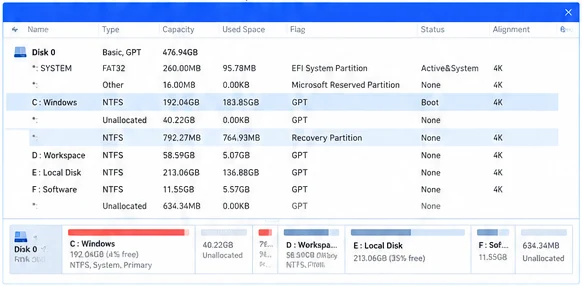
- Shrinking D in Disk Management does create free space, but that space appears on the right of the Recovery partition. C is on the left of Recovery, so the free space is not next to it and Extend Volume is greyed out.
- The Recovery partition is under 1 GB and Windows recovery tools depend on it, so do not delete it. Move it instead. Disk Management cannot move partitions, which is why a partition manager such as AOMEI Partition Assistant or MiniTool Partition Wizard is used.
Works for any drive, not only C and D
- Drive letters are only labels. C is simply the drive Windows is installed on, and D is the one that happened to have spare space. The same method works for any two partitions on the same physical disk: grow E using space from F, grow your games drive using an old backup drive, or give D more room by shrinking E.
- The rule is always the same: the free space has to be next to the partition you want to grow, and anything sitting between them (a Recovery partition or another drive) has to be moved out of the way first. A partition manager lets you drag the free space to either side of a partition, so it does not matter whether the drive you are growing sits to the left or to the right.
- Read this guide with your own letters in mind. Where it says D, think of the drive you are borrowing space from, and where it says C, think of the drive you are growing.
Step by step
- Shrink D to free up space. In your partition manager, right-click D and choose Resize/Move Partition. Reduce D to the size you want to keep. In our example D went from 58.59 GB to about 18 GB, which freed roughly 40 GB. Check the preview carefully before you confirm the dialog.
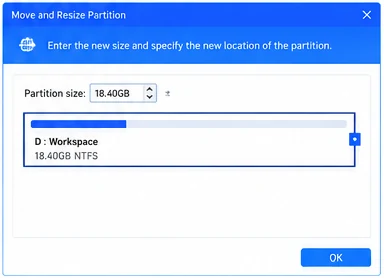
Shrinking D from 58.59 GB to 18.40 GB. Illustration of the example. Your screen may look slightly different. - Move the Recovery partition. Drag the Recovery partition to the right, past the new free space, so the free space sits directly next to C. Keep the Recovery partition. Moving takes longer than resizing because its data has to be relocated.
- Extend C into the free space. Right-click C, choose Resize/Move Partition and drag its right edge to take all of the free space. In our example C grew from 192.04 GB to about 232.26 GB, Recovery stayed at about 792 MB and D ended at about 18.40 GB. Sizes shift a little because of alignment and rounding, and that is normal.
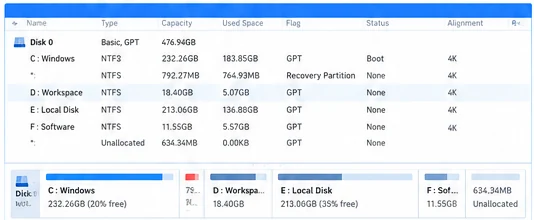
The layout after resizing. Illustration of the example. Your screen may look slightly different. - Read the pending operations before you apply. The tool shows a list of pending operations. It should say only: resize D, move Recovery, resize C. If you see a delete, a format, a wipe, or anything on a disk you did not choose, stop and cancel.
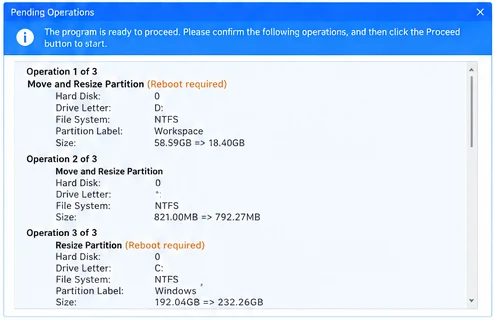
The pending operations to check before you apply. Illustration of the example. Your screen may look slightly different. - Restart and let it finish. The tool will usually restart the PC into a special environment to do the work. Keep the charger plugged in, do not close the lid, and never force a shutdown while the progress bar is running. It can take a while, so be patient.
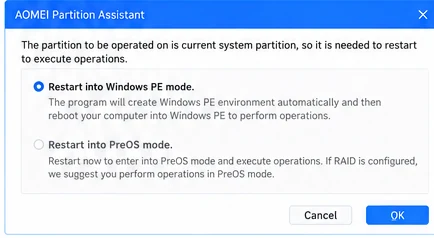
The restart prompt. Keep the charger plugged in. Illustration of the example. Your screen may look slightly different.
After the restart
When Windows starts normally, check everything before you relax:
- Sizes and files: Open This PC. C should show the larger size, and your files in D should open normally.
- Recovery partition: Open Disk Management and confirm the Recovery partition is still there.
- Turn encryption back on: If you decrypted a drive for the operation, turn encryption on again: Settings, Privacy and security, Device encryption (or Control Panel, BitLocker Drive Encryption).
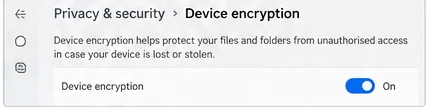
Device encryption switched back on. Illustration of the example. Your screen may look slightly different. - Verify protection: Let encryption finish, then run manage-bde -status C: again. You want Protection On. A percentage below 100% only means it is still working, so check again later.
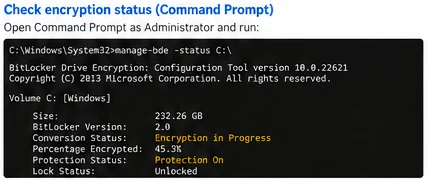
Checking encryption with manage-bde. Illustration of the example. Your screen may look slightly different. - Keep the key safe: Make sure your recovery key is saved and not exposed anywhere public.
Free space without resizing
If you only need a few extra gigabytes, you may not need to touch partitions at all:
- Temporary files: Go to Settings, System, Storage, Temporary files. This removes update leftovers and, if you wish, the previous Windows installation.
- Move big folders to D: Right-click Downloads, Documents or Videos, choose Properties, then Location, then Move.
- Remove unused apps: Open Settings, Apps, Installed apps and uninstall what you no longer use.
- Check cache folders: Browsers and code editors can leave very large caches inside your user profile in the AppData folder.
Windows itself needs breathing room. If C stays under about 15 to 20 GB free again and again, resizing is the proper fix.
When the whole disk is full
Moving space only works when another partition on the same disk has free space to give. If every drive is nearly full, there is nothing to borrow. Try these, from the cheapest:
- Find what is using the space: Open Settings, System, Storage and look at the categories. Large video files, old downloads and installers are the usual culprits. Remove what you no longer need.
- Move files off the disk: Copy photos, videos and old projects to an external drive or cloud storage, check they open, and only then delete the originals from the PC.
- Add a second drive: A second internal SSD, or an external SSD, gives you room for new apps, games and your Documents and Downloads folders without touching your existing partitions.
- Replace the disk with a bigger one: Clone the whole disk to a larger SSD with a cloning tool, then extend the last partition into the new space. This is the permanent fix when the disk is simply too small.
Never delete files from the Windows folder, the Program Files folders or the Recovery partition to make room. That can stop Windows from starting.
Common problems and quick fixes
- Extend Volume is greyed out? The free space is not directly to the right of C. Usually the Recovery partition is in the way. Move it with a partition manager, as shown above.
- The tool says the drive is encrypted? Some tools need BitLocker off or suspended. Follow the tool’s instructions, wait for the drive to be fully decrypted, and turn encryption on again afterwards.
- D is missing after the restart? Do not format the disk or create a new partition. Open Disk Management and check whether D is present without a drive letter. If the layout looks wrong, stop and ask the tool’s support or a technician.
- The operation seems stuck? Moving a partition with a lot of data is slow. Do not switch the PC off. Give it time, and stop only if the tool itself reports an error.
- C and D are on different disks? Space cannot be moved between two physical disks. Free space on C instead, or move large folders to the other disk.
Tools you can use
Disk Management is built into Windows and is enough for shrinking D. Moving the Recovery partition needs a partition manager. Check each tool’s current page for what its free version allows.
- AOMEI Partition Assistant: Used in this guide. Resize, move and extend partitions.
- MiniTool Partition Wizard: An alternative that works the same way.
- Microsoft recovery key page: Find and save your BitLocker recovery key.
- Microsoft Support: Official help for Disk Management and BitLocker.
BCVWORLD is not affiliated with these tools and earns nothing if you use them.
Why is Extend Volume greyed out for my C drive?
Windows only extends a partition into free space directly to its right. If a Recovery partition or your shrunk D drive is in between, the option stays greyed out. Move the Recovery partition so the free space touches C.
Can I increase C drive space from D drive without formatting?
Yes. A partition manager can shrink D, move Recovery and extend C while keeping your files. Back up first, because a power cut during the operation can still damage data.
Should I delete the Recovery partition to make this easier?
No. Move it instead. It is under 1 GB and Windows recovery tools depend on it.
Do I need to turn off BitLocker before resizing?
Often yes. Many tools need the drive decrypted or protection suspended. Check with manage-bde -status, follow your tool’s instructions and keep your recovery key safe.
Can I do this for drives other than C and D?
Yes. The method works for any two partitions on the same physical disk. The free space has to be next to the partition you want to grow, so move anything in between first.
What can I do if my whole disk is full?
There is nothing to borrow, so free space instead: remove large files, move them to an external drive or cloud storage, add a second drive, or clone the disk to a bigger SSD and extend the last partition.
How long does it take?
It depends on disk speed and how much data must be moved. Anything from a few minutes to well over an hour is possible. Keep the PC powered and do not interrupt it.
How much space should I give C?
Enough that C keeps at least 15 to 20 GB free after your apps and updates. Windows 11 needs room for updates and temporary files.
This guide is general information based on one example layout. Partition layouts, tools and Windows versions differ, so check your tool’s current instructions and back up your data before changing partitions. No method can guarantee that nothing goes wrong on every computer.